
February 14, 2026
How to Change App Name in Flutter
This blog is about how to change the app name in Flutter projects.
App Name
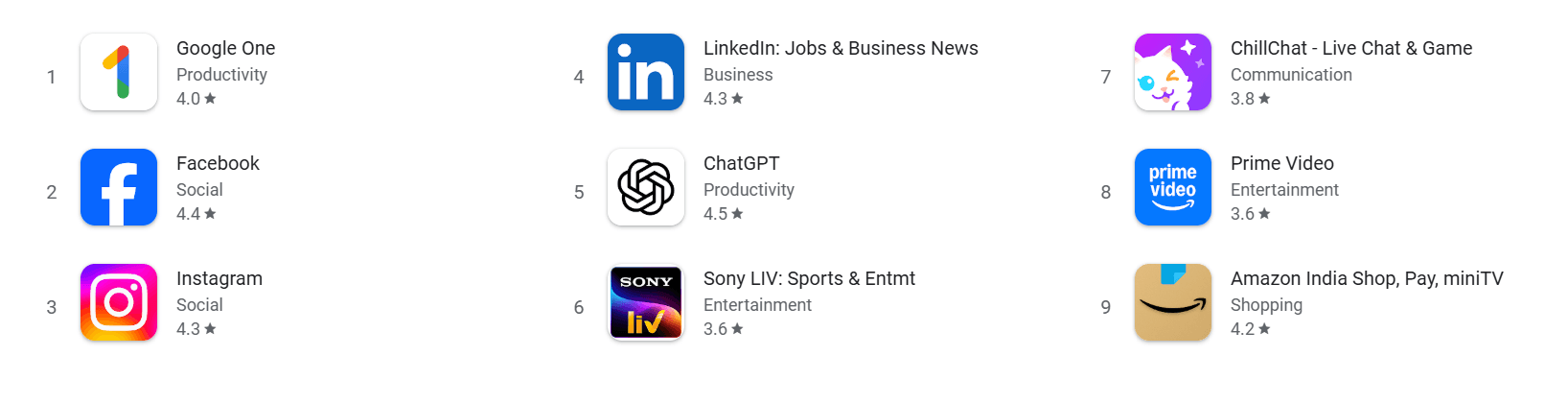
- Usually, when you download any app from the Play Store, the app will have its own unique name for identification.
Locate Where the App Name Comes From
- When we create a new project, the app name is the same as the project name.
- So first, we need to understand where this name comes from.
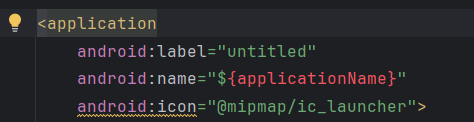
- The app name is defined in
android/app/src/AndroidManifest.xml. - In the
AndroidManifest.xmlfile, under the<application>tag, you will seeandroid:label. - This value is your app name.
Change the App Name
- There are two ways to change the app name:
Direct wayEfficient way
Direct Way
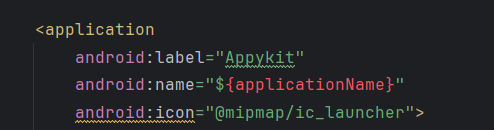
- Just assign the app name directly to
android:label, like this:
android:label="Appykit"
Efficient Way
- Instead of directly assigning the name, we should think about scalability and other use cases.
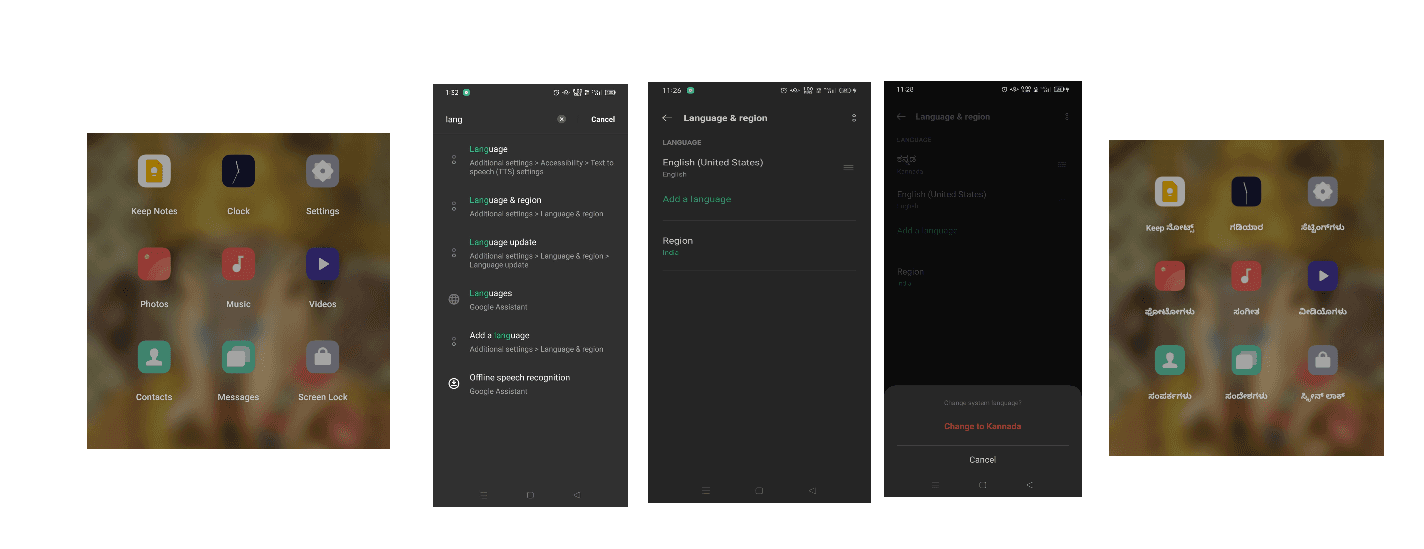
- Quick activity: Go to your phone settings and change the language.
- After the language is changed, come back and check the app names.
- You will see that system apps and some other apps show names in the selected language.
- This is possible only when the app name is stored in a separate file and linked indirectly in
AndroidManifest.xml.
Create a File to Hold the App Name
- Navigate to
android/app/src/res/values. - Right-click on the
valuesfolder and create a new file namedstrings.xml. - Inside the file, add the below lines and put your app name inside the
<string>tag.
<?xml version="1.0" encoding="utf-8"?>
<resources>
    <string name="app_name">Appykit</string>
</resources>
Link to AndroidManifest.xml File
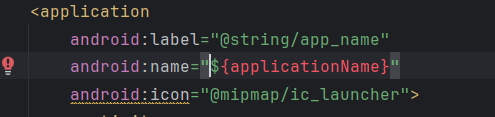
- Link
android:labelto respective path asandroid:label="@string/app_name"
Recommended for you
Jan 28, 2026
Flutter State Management using Provider (Beginner Friendly).
In this blog, we will explore how to manage state in a Flutter application using the Provider package, which is a popular and beginner-friendly approach.
Mar 3, 2026
5 Dribbble Design Studios Every UI & Product Designer Should Study.
If you want to improve your UI and product design skills, studying great designers is more powerful than watching random tutorials. In this blog, we break down five top Dribbble studios and what you can learn from each of them.